
How to Achieve Least Privilege in AWS IAM
Least privilege is easy to say and hard to do. Here are practical steps to get there in AWS, and how IAM Access Analyzer helps you check your policies.

The concept of least privilege is about providing only the permissions required to perform a task. That's much easier said than done, however, and the journey to getting there typically starts off by providing more permissions than necessary (while being reasonable), and then refining over time. This post covers tips, tricks, and steps to help with that.
IAM Best Practices
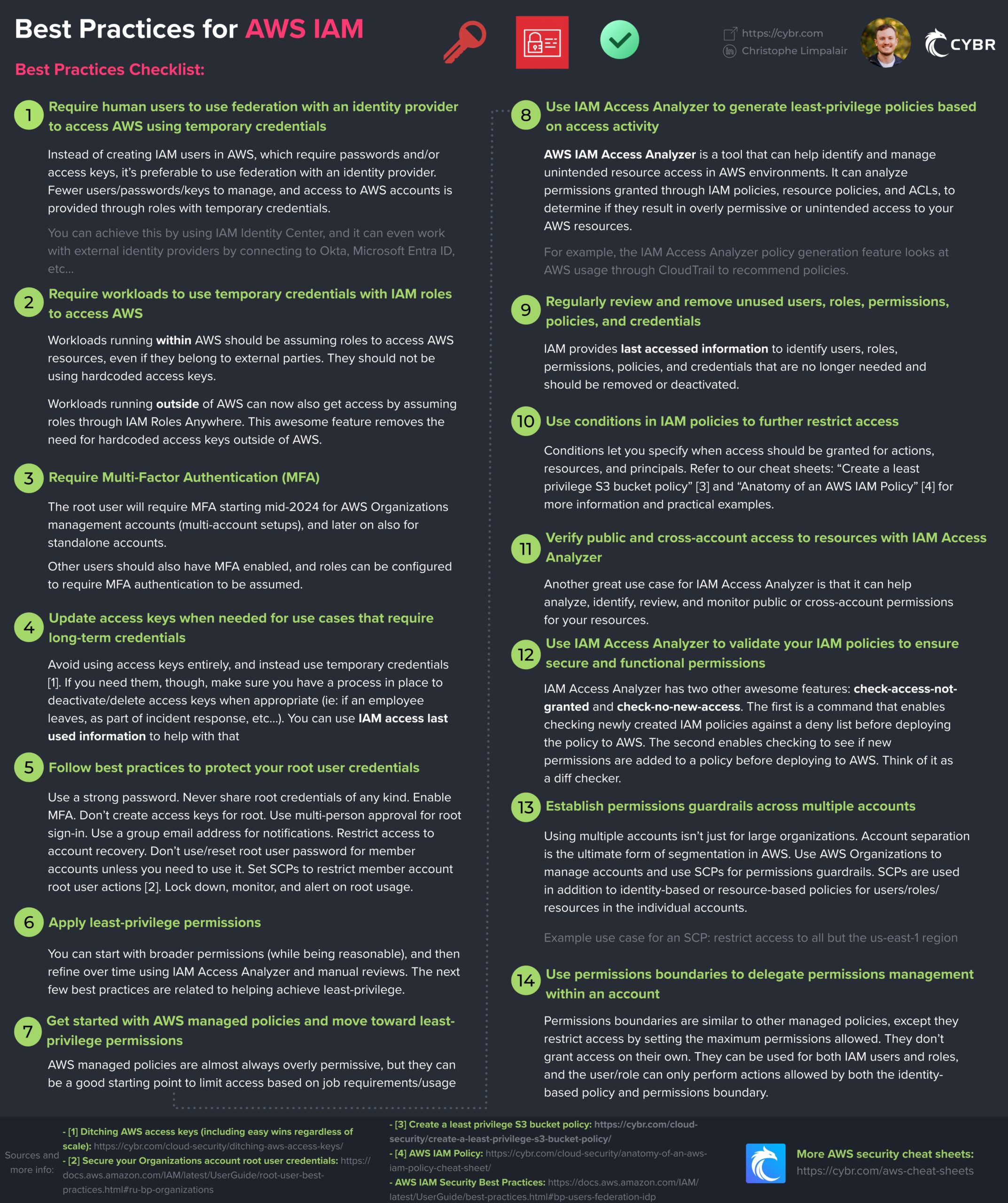
The above cheat sheet includes many best practices for AWS IAM, with more than half being related to achieving least privilege. Let's take a closer look:
- (6) Apply least-privilege permissions: You can start with broader permissions (while being reasonable), and then refine over time using IAM Access Analyzer and manual reviews.
- (7) Get started with AWS managed policies and move toward least-privilege permissions: AWS managed policies are almost always overly permissive, but they can be a good starting point to limit access based on job requirements/usage
- (8) Use IAM Access Analyzer to generate least-privilege policies based on access activity: IAM Access Analyzer can review up to 90 days of your AWS CloudTrail activity for an IAM user or role and generate a policy that contains only the actions and services that identity actually used. You need an existing CloudTrail trail, and you should review the generated policy before attaching it.
- (9) Regularly review and remove unused users, roles, permissions, policies, and credentials: IAM provides last accessed information to identify users, roles, permissions, policies, and credentials that are no longer needed and should be removed or deactivated.
- (10) Use conditions in IAM policies to further restrict access: Conditions let you specify when access should be granted for actions, resources, and principals. Refer to our cheat sheets: Create a least privilege S3 bucket policy and Anatomy of an AWS IAM Policy for more information and practical examples.
- (11) Verify public and cross-account access to resources with IAM Access Analyzer: Another great use case for IAM Access Analyzer is that it can help analyze, identify, review, and monitor public or cross-account permissions for your resources.
- (12) Use IAM Access Analyzer to validate your IAM policies to ensure secure and functional permissions: IAM Access Analyzer policy validation checks your policies against more than 100 grammar and best-practice checks as you write them. For stricter gates, its custom policy checks (
check-access-not-granted,check-no-new-access, andcheck-no-public-access) let you block deployments that grant specific actions or resources, add new access, or make a resource public. - (13) Establish permissions guardrails across multiple accounts: Using multiple accounts isn’t just for large organizations. Account separation is the ultimate form of segmentation in AWS. Use AWS Organizations to manage accounts, with service control policies (SCPs) to set the maximum permissions for principals and resource control policies (RCPs) to set the maximum permissions on resources across your organization. Neither grants access on its own; they apply on top of the identity-based and resource-based policies in each account.
- (14) Use permissions boundaries to delegate permissions management within an account: Permissions boundaries are similar to other managed policies, except they restrict access by setting the maximum permissions allowed. They don’t grant access on their own. They can be used for both IAM users and roles, and the user/role can only perform actions allowed by both the identity-based policy and permissions boundary.
Now let's go through and look at tips, tricks, and tools to achieve these best practices.
Tips for getting to least-privilege permissions
Step 1: Create roles for users to assume to perform specific tasks
Roles have many benefits, including helping us achieve least privilege. For example, if you have access to an admin-level user, but your regular day-to-day tasks only require you to access EKS, using an admin-level user for those day-to-day tasks is not following least privilege.
Instead, you can create a role that you would assume to perform those day-to-day EKS tasks, and if you ever need admin permissions for one-off use cases or for emergency purposes, then you can always revert back.
Step 2: Start with AWS-managed policies and refine over time
Figuring out what permissions are needed can be challenging and can take a lot of time. To help, you can start off using AWS-managed policies which are available in every AWS account. These are almost never going to give you least-privilege permissions since they're designed for broad use cases, but they can be a helpful starting point.
Then, over time, you can transition to customer-managed policies that you customize from the AWS-managed policy by removing resources or actions, adding conditions, etc...
A helpful way to do that is by using Access Analyzer to create policies based on access activity, as explained below.
Step 3: Regularly audit and remove unused users, roles, permissions, policies, and credentials
Drift happens over time, even to the best of us. Things change, resources get created and forgotten about, people leave, credentials get improperly rotated, and the list goes on. It will happen, and so it's important to regularly set up audits where you go in and look for unused resources. In the case of least privilege, we're specifically looking for unused users, roles, permissions, and credentials (passwords or access keys).
You can do that by looking at IAM's last accessed information, or create an IAM Access Analyzer unused access analyzer, which continuously flags unused roles, access keys, passwords, and permissions across an account or organization and recommends policy changes. The IAM credentials report is another quick way to spot unused passwords and access keys.
If it's not being used, unless it's a resource created for emergency situations and you haven't had any emergencies (hurray!) then it probably highlights an area for improvement regarding least privilege.
About IAM Access Analyzer
AWS IAM Access Analyzer helps you find and fix access that is broader than you intended. It analyzes the permissions granted through IAM policies, resource policies, and access control lists (ACLs), and it helps you write and check policies before you deploy them. For least privilege, four of its features matter most:
- External access findings flag resources that are shared with principals outside your account or organization, including public access.
- Internal access findings show who inside your organization can reach your critical resources.
- Unused access findings flag unused roles, access keys, passwords, and permissions, with recommendations for removing them.
- Policy validation and custom policy checks test a policy against best practices, or against your own rules, before you deploy it.
- Policy generation builds a policy from the actions an identity actually used.
External access analysis, policy validation, and policy generation are free. Unused access analysis, internal access analysis, and custom policy checks are charged.
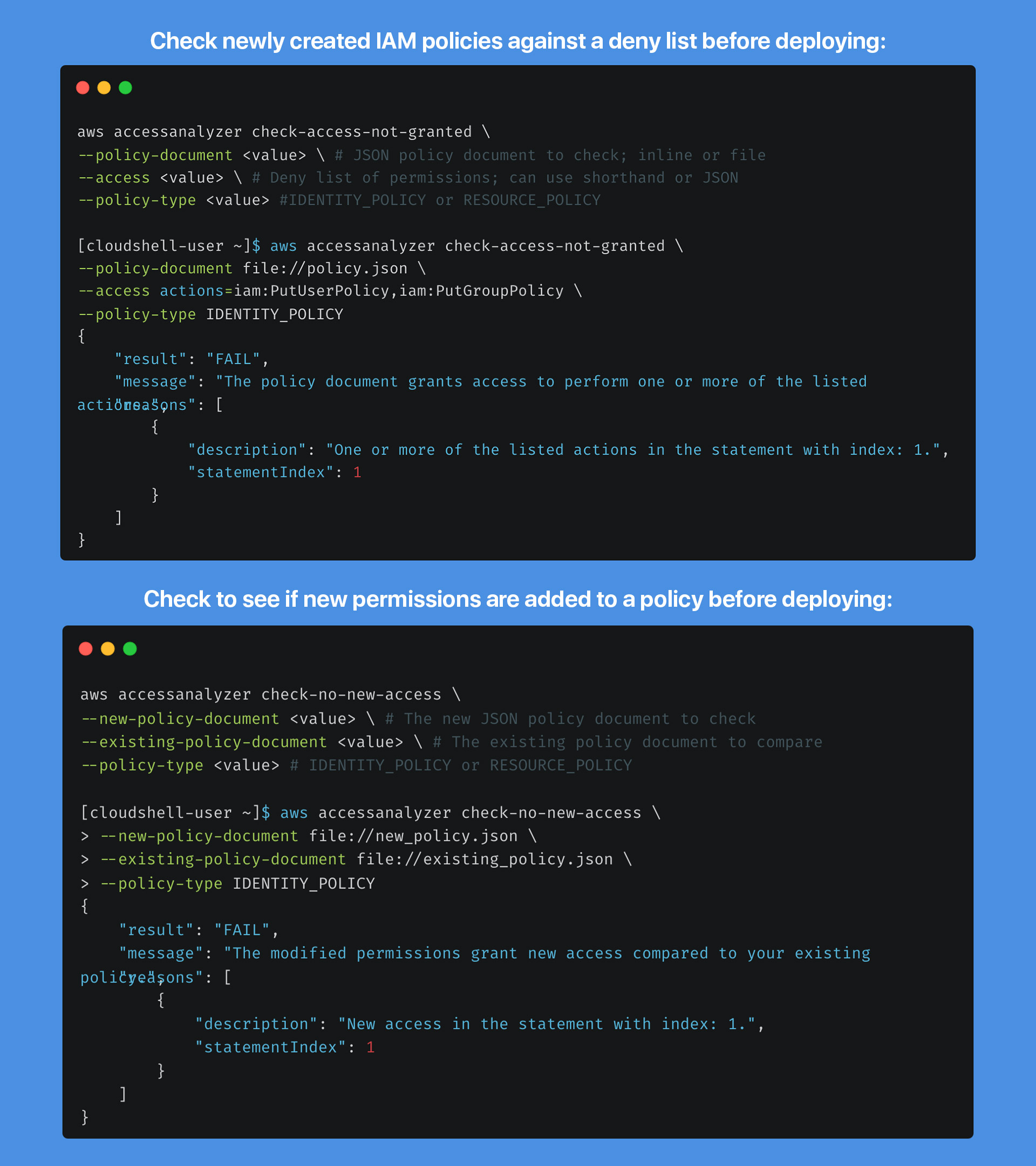
Generate policies from access activity
IAM Access Analyzer can review an identity's activity in your AWS CloudTrail logs and generate a policy template with the permissions that identity used during that time range. It's a great way to replace a broad AWS-managed policy with a customer-managed one. More info
Two tips:
- It's generally easier to start off granting more permissions than necessary (within reason) and then reduce them over time, since that significantly reduces how often your team has to ask for more access. The risk, of course, is granting far more than necessary to people who might go rogue or whose credentials get compromised (leaked credentials, malware, phishing), and then forgetting to go back and refine.
- Audit access regularly and keep tweaking. This is not a one-and-done task.
Check that a policy doesn't grant access you've ruled out
The check-access-not-granted command checks a policy against a list of actions and/or resource ARNs that it must not grant, before you deploy it:
aws accessanalyzer check-access-not-granted \
    --policy-document file://policy.json \
    --access actions=iam:PutUserPolicy,iam:PutGroupPolicy \
    --policy-type IDENTITY_POLICY
--policy-documentis the JSON policy to check, inline or as a file path.--accesslists the actions and/or resources you don't want the policy to grant, for exampleactions=iam:PassRole,resources=arn:aws:s3:::prod-bucket/*.--policy-typeisIDENTITY_POLICYorRESOURCE_POLICY(see identity vs. resource policies).
If the policy grants one of those actions, the check fails and tells you which statement is responsible:
{
    "result": "FAIL",
    "message": "The policy document grants access to perform one or more of the listed actions.",
    "reasons": [
        {
            "description": "One or more of the listed actions in the statement with index: 1.",
            "statementIndex": 1
        }
    ]
}
Here, the statement at index 1 grants iam:PutUserPolicy. More info
Check that a policy change doesn't add new access
The check-no-new-access command compares a new version of a policy with the existing one and fails if the new version grants more access. Think of it as a diff checker for permissions:
aws accessanalyzer check-no-new-access \
    --new-policy-document file://new_policy.json \
    --existing-policy-document file://existing_policy.json \
    --policy-type IDENTITY_POLICY
{
    "result": "FAIL",
    "message": "The modified permissions grant new access compared to your existing policy.",
    "reasons": [
        {
            "description": "New access in the statement with index: 1.",
            "statementIndex": 1
        }
    ]
}
A third custom check, check-no-public-access, fails if a resource policy would make the resource public. These custom checks need a current AWS CLI v2 and are billed per call. All of them are a good fit for CI/CD pipelines, so every policy change gets checked before it reaches your accounts. You can practice them in our hands-on labs: check IAM policies against a deny list and check policies for new access before deployment.
Comments
Loading comments…